Stop Googling the Copyright Symbol: Every Keyboard Shortcut for Special Characters in 2026
The complete 2026 guide to typing special characters on Windows and Mac. Covers all 3 Windows methods (consonant+Hanja, Win+., charmap/Alt codes), all Mac methods, a comparison table by speed and range, Office tips, and a consonant reference table.
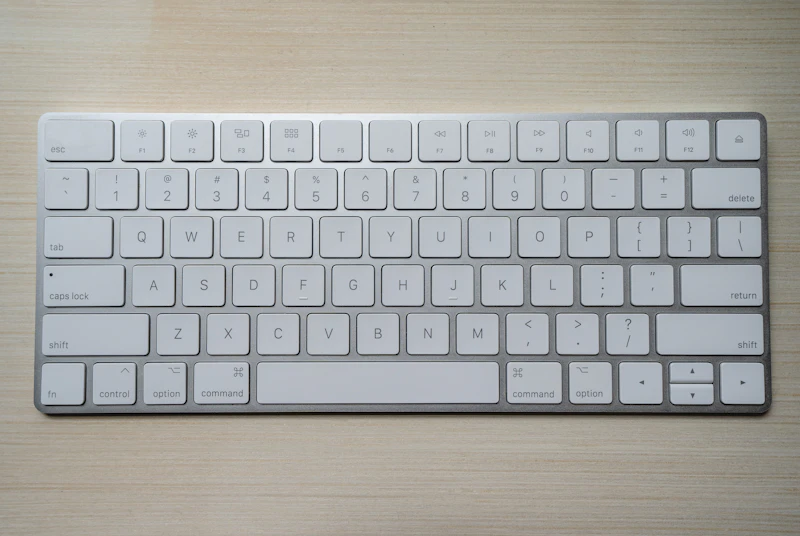
I used to Google 'copyright symbol' every single time I needed it. Then one day I timed myself: 18 seconds to open a browser tab, search, find the symbol, copy it, close the tab. Multiply that by the dozens of times a week I need symbols like ©, °, —, or €, and that's a real productivity drain. It took me about 10 minutes to learn the keyboard shortcuts that now save me that time every day. This guide is those 10 minutes, written out.
What You'll Learn
- ✅All 3 Windows methods for typing special characters — including the consonant+Hanja trick most people don't know
- ✅All Mac methods, plus Option key combinations for the most commonly needed symbols
- ✅A comparison table so you can pick the right method for your situation
3 Ways to Type Special Characters on Windows
Windows has three built-in methods, each suited to different situations. Here is a comparison to help you choose:
| Method | Speed | Ease | Character Range | Best For |
|---|---|---|---|---|
| Consonant + Hanja key | Fastest | Easy once learned | ~300 common symbols | Korean keyboard users, frequent use |
| Win + . (Emoji picker) | Fast | Very easy | Thousands, searchable | Any symbol by keyword |
| Character Map (charmap) | Slow | Requires navigation | Full Unicode (149,000+) | Rare/obscure characters |
| Alt codes (numpad) | Fast when memorized | Requires memorization | ~256 characters | Power users on desktop keyboards |
Method 1: Consonant + Hanja Key (Korean Keyboard Only)
This is the fastest method if you use a Korean keyboard, and it is one of the most underused features in Windows. In Korean input mode, type any consonant (ㄱ through ㅎ), then press the Hanja key (한자). A popup appears with the special characters mapped to that consonant. Each consonant reveals a different category.
- ㄱ + 한자: parentheses and brackets — ㉠ ㉡ ㉢ ㈀ ㈁ ㈂
- ㄴ + 한자: numbered and Roman numerals — ① ② ③ Ⅰ Ⅱ Ⅲ
- ㄷ + 한자: bracketed Korean — ㉮ ㉯ ㉰ ㈎ ㈏ ㈐
- ㄹ + 한자: bracketed Latin — ⒜ ⒝ ⒞ ⓐ ⓑ ⓒ
- ㅁ + 한자: geometric shapes — ■ □ ▣ ◆ ◇ ▲ △ ▼ ▽ ● ○
- ㅂ + 한자: math/logic — ± × ÷ ≠ ≤ ≥ ∞ ∴
- ㅅ + 한자: stars/circles — ☆ ★ ○ ● ◎ ◇ ◆
- ㅈ + 한자: card suits and music — ♠ ♣ ♥ ♦ ♡ ♩ ♪ ♫
- ㅊ + 한자: arrows — → ← ↑ ↓ ↔ ↕
- ㅋ + 한자: box-drawing lines — ─ │ ┌ ┐ └ ┘ ├ ┤
- ㅌ + 한자: unit symbols — ㎕ ㎖ ㎗ ㎘ ㎣ ㎤ ㎥
- ㅍ + 한자: scientific units — ㎐ ㎑ ㎒ ㎓ ㏊ ㎍ ㎎ ㎏
No Hanja Key on Your Keyboard?
Some laptops don't have a dedicated Hanja key. Try the right Alt key — on many Korean-layout keyboards it doubles as Hanja. If that doesn't work, use Ctrl+F9 or switch to the Win+. method below.
Method 2: Windows Emoji Picker (Win + .)
Press Win + . (Windows key + period) or Win + ; from anywhere in Windows to open the emoji and symbol picker. It works in any text field across the entire OS — browsers, Office apps, Notepad, chat apps, everywhere. To get to special characters rather than emojis, click the Ω (omega) symbol tab at the top.
- General Punctuation: … « » ‹ › — – ‐ ·
- Currency: $ € £ ¥ ₩ ₿ ₹ ₽
- Math: ± × ÷ √ ∑ ∏ ∫ ∞ ≈ ≠ ≤ ≥
- Latin Extended: à á â ã ä å ç è é ê ë (useful for foreign names)
- Geometric Shapes: ▲ ▼ ◆ ◇ ○ ● □ ■ △ ▽
Try this tool now:
Symbol & Emoji Copy Paste Tool →Method 3: Character Map and Alt Codes
The Character Map (charmap) is Windows' full Unicode browser. Press Win+R, type charmap, and press Enter. Check 'Advanced view' to enable search. You can look up any character by name — type 'degree sign' to find °, or 'left double quotation mark' to find the curly quote character. The status bar shows the Alt code and Unicode value for each selected character.
Alt codes are the oldest method: hold Alt and type a number on the numeric keypad (right side of full keyboards, Num Lock must be on). They are fast once memorized for frequently needed characters.
- Alt + 0169 = © (Copyright)
- Alt + 0174 = ® (Registered trademark)
- Alt + 0176 = ° (Degree sign)
- Alt + 0153 = ™ (Trademark)
- Alt + 0128 = € (Euro sign)
- Alt + 3 = ♥ (Heart)
- Alt + 0151 = — (Em dash)
- Alt + 0150 = – (En dash)
Typing Special Characters on Mac
Mac's approach to special characters is arguably the most elegant of any OS. The main method is Control + Command + Space, which opens the Character Viewer. You can browse by category, search by name, and add symbols to Favorites. The Favorites section is the key feature — build it up once and you'll never need to search for common symbols again.
For power users, the Option key unlocks a hidden character layer. Hold Option while pressing a key to get the mapped character. Some of the most useful combinations:
- Option + G = © (Copyright)
- Option + R = ® (Registered trademark)
- Option + 2 = ™ (Trademark)
- Option + 3 = £ (Pound sterling)
- Option + Shift + 2 = € (Euro)
- Option + Shift + 8 = ° (Degree sign)
- Option + 8 = • (Bullet point)
- Option + Shift + - = — (Em dash)
- Option + - = – (En dash)
To discover all Option key mappings, go to System Settings, then Keyboard, and enable Show Input menu in menu bar. Click the input menu icon and select Show Keyboard Viewer. While the viewer is open, hold Option to see which characters each key produces, then hold Option+Shift to see a second layer.
For symbols you type constantly, set up Text Replacements in System Settings, then Keyboard, then Text Replacements. For example, type 'cpy' and have it replace with ©. This works system-wide in all Mac apps, no keyboard shortcut memorization required.
Special Characters in Microsoft Office
Microsoft Office has its own symbol tools on top of the OS-level methods. These are especially useful for mathematical symbols and characters from non-Latin scripts.
- Word and PowerPoint: Insert tab, then Symbol, then More Symbols — browse or search any character
- Excel: Same Insert > Symbol path, or use the CHAR() function (=CHAR(169) gives ©, =CHAR(176) gives °)
- AutoCorrect: Word automatically converts (c) to ©, (r) to ®, and (tm) to ™
- Equation Editor: Insert, then Equation for math symbols — has its own dedicated input system
- Korean HWP (Hangul): Ctrl+F10 opens the built-in character table
Try this tool now:
Symbol & Emoji Copy Paste Tool →Frequently Asked Questions
Why don't Alt codes work on my laptop?
Alt codes require the numeric keypad on the right side of full-size desktop keyboards. Most laptops don't have a dedicated numpad. On laptops, use Win+. to open the emoji picker instead — it works anywhere and is actually faster.
How do I type special characters in Google Docs?
In Google Docs, go to Insert, then Special Characters. You can draw a symbol, search by name, or browse by category. This method works even if your OS shortcuts don't apply in browser-based apps.
Can I create custom keyboard shortcuts for special characters?
On Mac, use System Settings > Keyboard > Text Replacements to create text shortcuts that work in any app. On Windows, AutoHotkey or PowerToys can map any key combination to any character. In Word specifically, go to Insert > Symbol > Shortcut Key to assign a keyboard shortcut.
What is the difference between Unicode, ASCII, and Alt codes?
ASCII is an older encoding with 128 characters (basic Latin letters, numbers, punctuation). Unicode is the modern standard covering 149,000+ characters from every writing system. Alt codes are a Windows-specific input method: hold Alt and type a number to insert a character. Unicode encompasses and extends ASCII, and is what all modern systems use.
How do I find the exact character I need if I don't know its name?
The Windows Character Map and Mac Character Viewer both let you visually browse character tables. If you need to search but don't know the name, try an online symbol copy-paste tool where you can browse by visual category — arrows, hearts, math symbols, and so on.
Symbol & Emoji Copy Paste Tool
Click any symbol to copy it instantly — no keyboard shortcuts to memorize
Find Your Symbol Now →▶Try the tools from this article
Haeun
Content editor. Making everyday tool guides easy and fun to follow.
Found this helpful? Get new guide alerts
No spam. Unsubscribe anytime. · By subscribing, you agree to our Privacy Policy.