I Wrote My Whole GitHub README in HTML — Then Learned Markdown in 10 Minutes
Markdown looks intimidating until you realize a hash mark makes a heading, two asterisks make bold, and a hyphen makes a list. That's literally 80% of it.
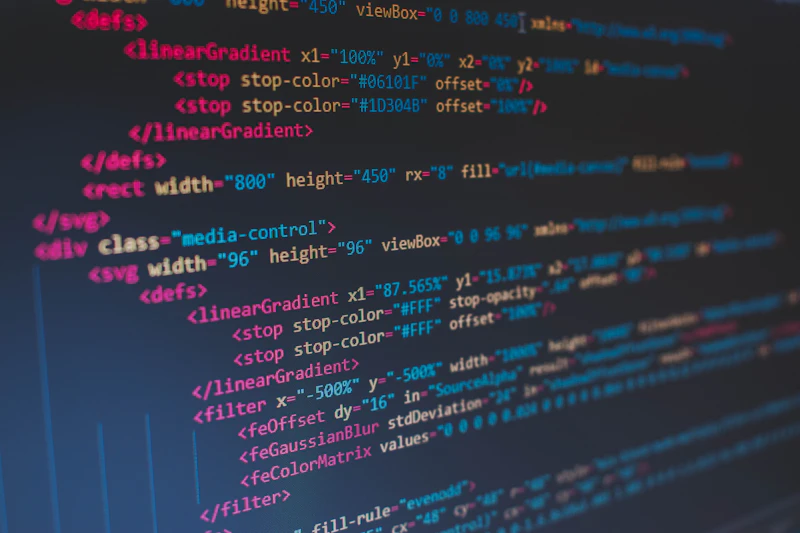
I spent two hours writing my first GitHub README in raw HTML. Nested div tags, style attributes, the works. My cofounder took one look and said 'you know Markdown does all of this in 30 seconds, right?' He then rewrote the entire thing in 3 minutes. That's the moment I learned what every developer eventually learns: Markdown is HTML's lazy cousin that wins 90% of the time.
John Gruber built Markdown in 2004 with one design goal: the raw text should be as readable as the rendered output. That's why a hash (#) becomes a heading, two asterisks (**bold**) become bold, and a hyphen (-) becomes a list. Once you spend 10 minutes learning these conventions, you can format GitHub READMEs, blog posts, documentation, Notion pages, Slack messages, Discord replies, Obsidian notes, and academic papers — all with the same syntax.
What you'll learn in this guide
- ✅The 6 Markdown patterns that cover 90% of real-world formatting
- ✅How the same syntax powers GitHub, Notion, Obsidian, Slack, and Discord
- ✅Advanced features (tables, mermaid, math) that save hours on documentation
Basic Syntax: Headings, Bold, and Italic
Headings are created with hash (#) symbols. One hash for H1, two for H2, and so on up to H6. Always put a space after the hash symbols. For emphasis, wrap text in single asterisks (*italic*) or underscores (_italic_) for italics, and double asterisks (**bold**) or double underscores (__bold__) for bold. You can combine them: ***bold italic*** or use ___bold italic___.
# Heading 1
## Heading 2
### Heading 3
#### Heading 4

*italic text* or _italic text_
**bold text** or __bold text__
***bold italic*** or ___bold italic___
~~strikethrough~~
Paragraphs are separated by blank lines. A single line break within text won't create a new paragraph — you need a full empty line between blocks. For a line break within a paragraph (without starting a new paragraph), add two spaces at the end of the line or use a backslash (\). Horizontal rules are created with three or more hyphens (---), asterisks (***), or underscores (___).
Lists: Ordered and Unordered
Unordered lists use hyphens (-), asterisks (*), or plus signs (+) followed by a space. Ordered lists use numbers followed by periods. You can nest lists by indenting with 2 or 4 spaces. Markdown is flexible with ordered list numbering — you can use 1 for every item and it will still render correctly as a sequential list.
- Item one
- Item two
  - Nested item
  - Another nested item
- Item three

1. First step
2. Second step
   1. Sub-step A
   2. Sub-step B
3. Third step

- [x] Completed task
- [ ] Incomplete task
Task lists (checkboxes) are a GitHub-flavored Markdown extension. Use - [ ] for unchecked and - [x] for checked items. These are particularly useful in issue descriptions and pull request templates for tracking action items.
Links and Images
Links use the format [display text](URL). You can add a hover title with [display text](URL "title"). Reference-style links let you define URLs elsewhere in the document for cleaner text: [display text][ref] with [ref]: URL defined at the bottom. Images use the same syntax but with an exclamation mark prefix: .
[Visit Google](https://google.com)
[Visit Google](https://google.com "Google Homepage")
[Reference link][1]
[1]: https://example.com


<!-- Linked image -->
[](https://example.com)Code: Inline and Blocks
Inline code is wrapped in single backticks: `code here`. For code blocks, use triple backticks (```) on separate lines before and after the code. Add a language identifier after the opening backticks for syntax highlighting. Most Markdown processors support highlighting for JavaScript, Python, TypeScript, HTML, CSS, JSON, Bash, SQL, and dozens more languages.
Inline: Use `console.log()` to debug.

```javascript
function greet(name) {
  return `Hello, ${name}!`;
}
```

```python
def greet(name):
    return f"Hello, {name}!"
```

    // Indented code block (4 spaces)
    const x = 42;
Tables
Tables use pipes (|) and hyphens (-) to create columns and rows. The second row defines alignment: left-aligned (default), center-aligned (:---:), or right-aligned (---:). Tables don't need to be perfectly aligned in the source — Markdown processors handle the formatting.
| Feature   | Markdown | HTML    |
|-----------|:--------:|--------:|
| Headings  | Easy     | Verbose |
| Lists     | Simple   | Complex |
| Tables    | OK       | Tedious |
| Learning  | Quick    | Slow    |
Advanced Features
Beyond basic syntax, many Markdown flavors support extended features that add even more power to your documents:
- Footnotes: Add [^1] in text and [^1]: footnote content at the bottom. Supported in GitHub, Obsidian, and many static site generators.
- Definition lists: Term on one line, followed by : definition on the next (indented). Supported in PHP Markdown Extra and some processors.
- Abbreviations: Define *[HTML]: Hyper Text Markup Language and all instances of HTML in the document show a tooltip.
- Emoji: Use :emoji_name: syntax (e.g., :rocket:, :tada:). Widely supported on GitHub, Slack, Discord.
- Math equations: Use $inline math$ and $$display math$$ with LaTeX syntax. Supported on GitHub, Obsidian, Jupyter notebooks.
- Mermaid diagrams: Create flowcharts, sequence diagrams, and more with ```mermaid code blocks. Supported on GitHub and many documentation tools.
- Admonitions/callouts: Use > [!NOTE], > [!WARNING], > [!TIP] in blockquotes. Supported on GitHub and Obsidian.
Blockquotes use the greater-than symbol (>) at the start of each line. They can be nested (>>), contain other Markdown elements, and are commonly used for quotes, notes, and callouts. Many platforms extend blockquotes with special syntax for colored callout boxes.
Always write with live preview
Writing Markdown blind is slow because you can't tell if you got the syntax right until you publish. Use an editor with side-by-side preview — VS Code with the built-in Markdown preview, Obsidian, Typora, or a browser-based Markdown editor. You'll catch missing backticks and broken links before they embarrass you in a GitHub PR.
Different flavors handle the same syntax differently
GitHub-Flavored Markdown (GFM), CommonMark, Obsidian's flavor, and Notion's flavor are not 100% identical. Tables work on GitHub and Notion but not basic CommonMark. Task lists work on GitHub but look ugly elsewhere. Math equations work on GitHub and Obsidian but not Notion. If a document renders beautifully on one platform and looks broken on another, it's almost always a flavor mismatch — not a bug you wrote.
Markdown Editor
Write Markdown with live preview, export to HTML, or copy the rendered result
Open the editor →Frequently Asked Questions
What's the difference between Markdown and HTML?
Markdown is a lightweight syntax that converts to HTML. While HTML offers more precise control over layout and styling, Markdown is faster to write, easier to read in raw form, and sufficient for most content. You can also mix HTML directly into Markdown documents when you need features Markdown doesn't support.
Which Markdown flavor should I use?
For most purposes, GitHub-Flavored Markdown (GFM) is the safest choice as it's widely supported and includes useful extensions like tables, task lists, and strikethrough. CommonMark is the standardized specification that most processors follow for core syntax.
Can I use Markdown for academic papers?
Yes — tools like Pandoc can convert Markdown to PDF, DOCX, or LaTeX with full support for citations, footnotes, and bibliographies. Combined with a reference manager like Zotero, Markdown becomes a powerful academic writing tool.
How do I create a table of contents in Markdown?
Most Markdown processors don't auto-generate a table of contents, but you can create one manually using links to headings: [Section Name](#section-name). GitHub automatically creates anchor IDs from headings. Many static site generators and editors (like VS Code with extensions) can auto-generate TOCs.
▶Try the tools from this article
Minjae
Developer & tech writer. Deep dives into dev tools and file conversion technology.
Found this helpful? Get new guide alerts
No spam. Unsubscribe anytime. · By subscribing, you agree to our Privacy Policy.